Documentation
Complete guide to installing and using DevKit on your system
System Requirements for Linux
Minimum Requirements
- Operating System: Ubuntu 20.04+, Debian 11+, or any Debian-based distribution
- Architecture: x86_64 (amd64) 64-bit
- RAM: 512 MB
- Disk Space: ~750 MB
- Desktop Environment required (GNOME, KDE, XFCE, etc.)
Recommended
- 1 GB+ RAM
- SSD storage for better performance
- Modern CPU with 2+ cores
Installation on Linux
1Download DevKit
Download the DevKit DEB package for Linux:
⬇ Download devkit_1.1.3_amd64.deb (241 MB)
Version 1.1.3 • Released March 5, 2026
Or download via command line:
wget https://downloads.devkit.to/devkit/php/1.1.3/devkit_1.1.3_amd64.deb
2Install using dpkg
Navigate to the directory where you downloaded the file and install using dpkg:
cd ~/Downloads
sudo dpkg -i devkit_1.1.3_amd64.deb
You need sudo privileges to install DevKit. The installation will place DevKit in /opt/codeseasy/devkit.
3Launch DevKit
After installation, you can launch DevKit from:
- Application Menu: Search for "DevKit" in your application launcher
- Terminal: Run
devkitcommand
devkit
4First Run Setup
On first launch, DevKit will automatically:
- Initialize all services (PHP, Nginx, MariaDB, Redis)
- Set up MySQL root user with empty password
- Configure default ports (8080 for web, 3306 for MySQL, 6379 for Redis)
- Create the web root directory at
/opt/codeseasy/devkit/services/nginx/html
If port 8080 is already in use, DevKit will automatically try ports 8081, 8082, etc. The actual port in use will be displayed in the dashboard.
Using DevKit on Linux
Starting Services
Click the "Start" button next to each service in the DevKit dashboard:
- PHP-FPM: PHP FastCGI Process Manager
- Nginx: Web server (default: http://localhost:8080)
- MariaDB: MySQL-compatible database
- Redis: In-memory cache
Accessing Your Projects
Place your PHP files in the web root directory:
/opt/codeseasy/devkit/services/nginx/html
Access your projects at:
http://localhost:8080/your-file.php
Database Access
- Username: root
- Password: (empty - no password)
- Host: localhost
- Port: 3306
Access phpMyAdmin at:
http://localhost:8080/phpmyadmin
PATH Setup (Optional)
DevKit can add PHP, MySQL, Composer, and Redis binaries to your system PATH. Click "PATH Setup" in the dashboard to configure:
- User Mode: Adds to your user PATH only (~/.bashrc)
- System Mode: Adds to system-wide PATH (requires sudo)
After PATH setup, you can use these commands from any terminal:
php --version
mysql --version
composer --version
redis-cli --version
Uninstalling DevKit
To remove DevKit from your system:
Using dpkg:
sudo dpkg --remove devkit
Using apt:
sudo apt remove devkit
To remove DevKit along with configuration files and databases, use:
sudo apt purge devkit
System Requirements for Windows
Minimum Requirements
- Operating System: Windows 10 64-bit or Windows 11
- Architecture: x86_64 (64-bit)
- RAM: 512 MB
- Disk Space: ~300 MB
Recommended
- 1 GB+ RAM
- SSD storage for better performance
- Modern CPU with 2+ cores
Included Components
- Visual C++ Redistributable (bundled in installer)
Installation on Windows
1Download DevKit
Download DevKit for Windows:
Direct download (204 MB EXE)
Version 1.1.3 • Released March 5, 2026
2Windows Security Warning
When you run the installer, Windows SmartScreen may show a warning: "Windows protected your PC"
This is expected for new software. DevKit is safe to install. To proceed:
- Click on "More info"
- Click "Run anyway"
This warning appears because the installer is not yet widely recognized by Microsoft SmartScreen. As DevKit gains more downloads, this warning will disappear.
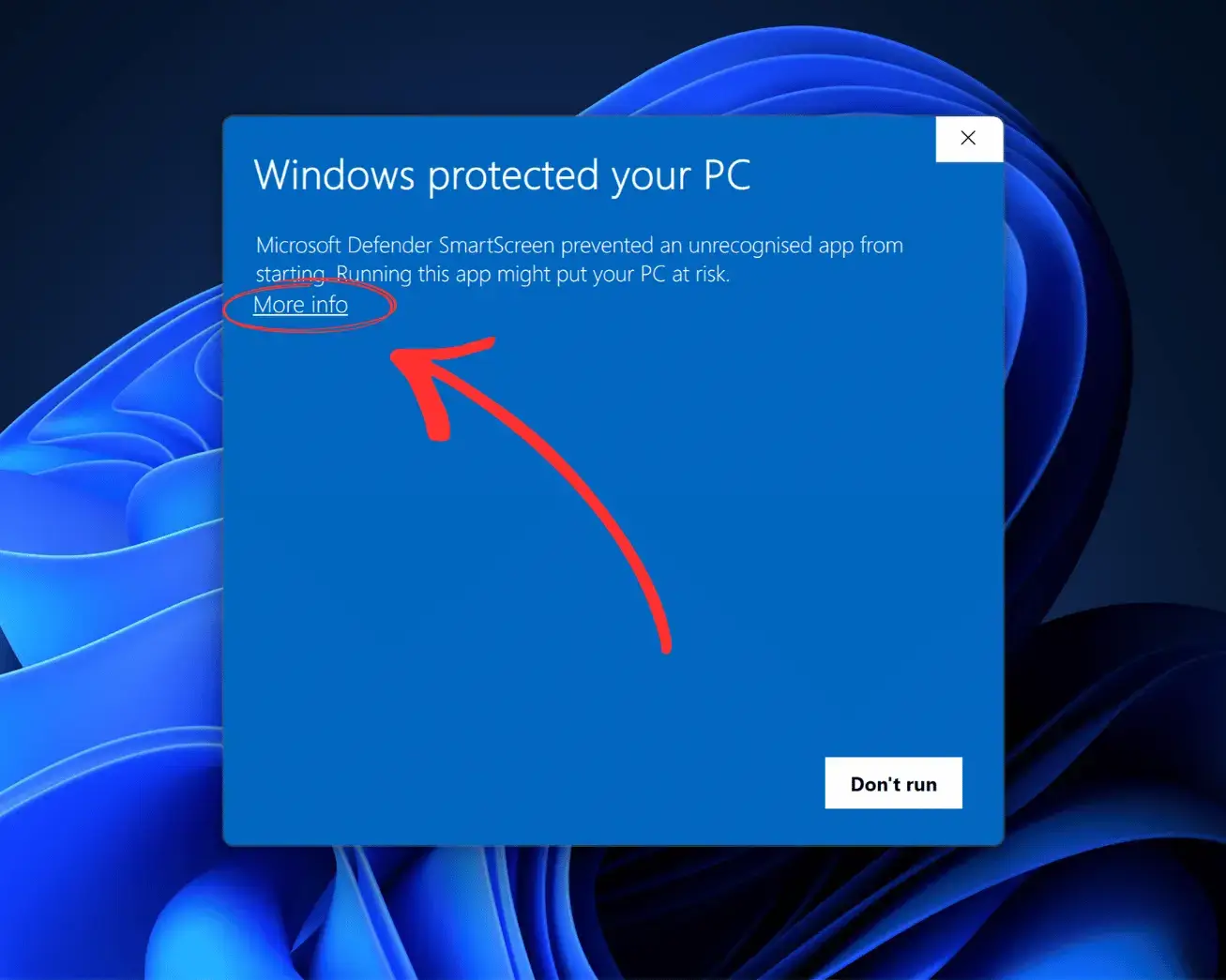
Step 1: Click "More info"
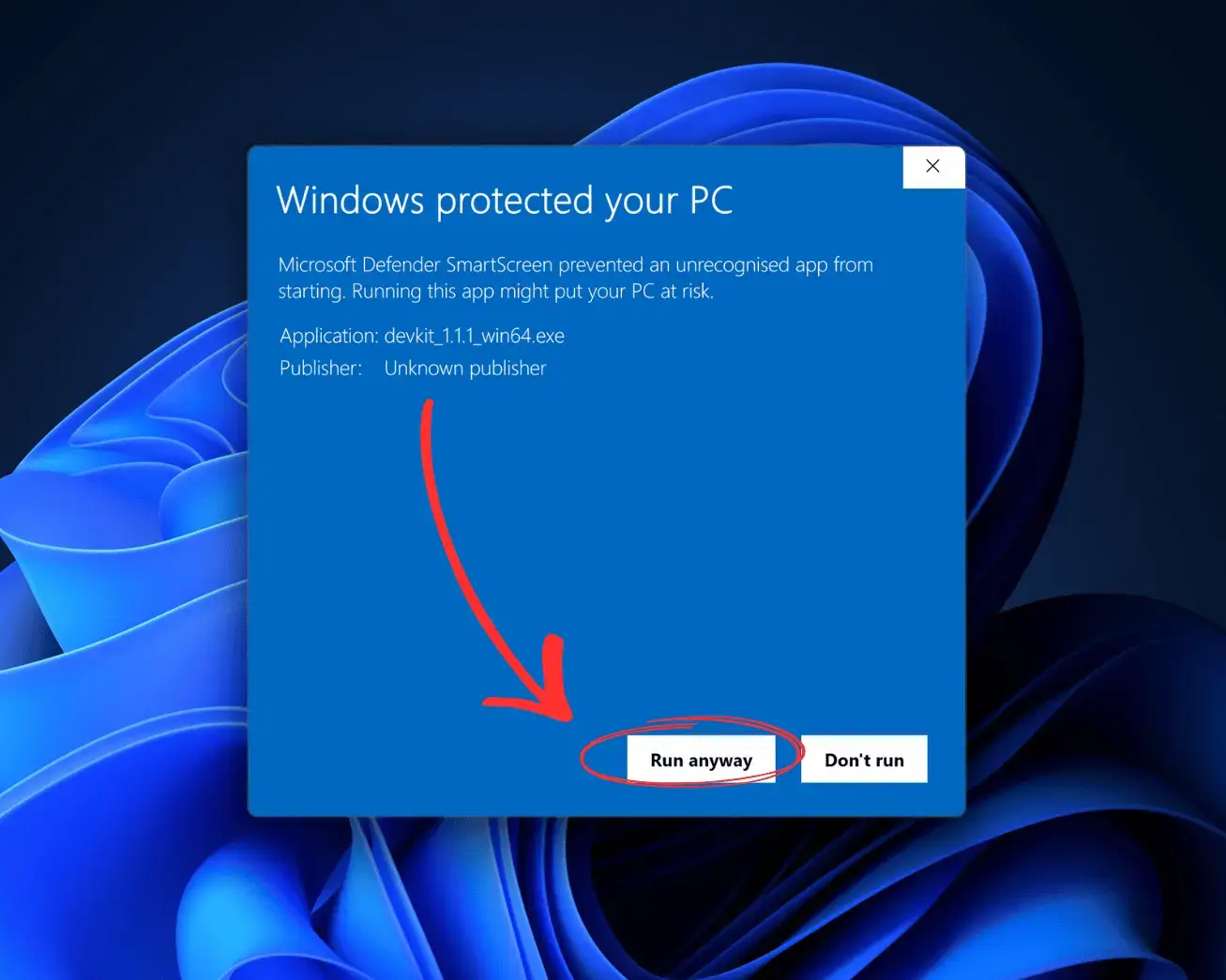
Step 2: Click "Run anyway"
3Run the Installer
Double-click devkit_1.1.3_win64.exe to start the installation wizard.
- Accept the license agreement
- Choose installation directory (default:
C:\CodesEasy\DevKit) - Select whether to create desktop shortcut
- Click "Install" and wait for the installation to complete
The installer may request administrator privileges to install DevKit. This is required for proper installation.
4Launch DevKit
After installation, launch DevKit from:
- Desktop Shortcut: Double-click the DevKit icon
- Start Menu: Search for "DevKit"
- Installation Directory: Run
C:\CodesEasy\DevKit\DevKit.exe
5First Run Setup
On first launch, DevKit will automatically:
- Initialize all services (PHP, Nginx, MariaDB, Redis)
- Set up MySQL root user with empty password
- Configure default ports (8080 for web, 3306 for MySQL, 6379 for Redis)
- Create the web root directory at
C:\CodesEasy\DevKit\services\nginx\html
If port 8080 is already in use, DevKit will automatically try ports 8081, 8082, etc. The actual port in use will be displayed in the dashboard.
Using DevKit on Windows
Starting Services
Click the "Start" button next to each service in the DevKit dashboard:
- PHP-CGI: PHP FastCGI (runs on port 9000)
- Nginx: Web server (default: http://localhost:8080)
- MariaDB: MySQL-compatible database
- Redis: In-memory cache
Accessing Your Projects
Place your PHP files in the web root directory:
C:\CodesEasy\DevKit\services\nginx\html
Access your projects at:
http://localhost:8080/your-file.php
Database Access
- Username: root
- Password: (empty - no password)
- Host: localhost
- Port: 3306
Access phpMyAdmin at:
http://localhost:8080/phpmyadmin
PATH Setup (Optional)
DevKit can add PHP, MySQL, Composer, and Redis binaries to your system PATH. Click "PATH Setup" in the dashboard to configure:
- User Mode: Adds to your user PATH only
- System Mode: Adds to system-wide PATH (requires administrator)
After PATH setup, you can use these commands from Command Prompt or PowerShell:
php --version
mysql --version
composer --version
redis-cli --version
Windows Firewall
When you start services for the first time, Windows Firewall may ask for permission. Allow access for:
- nginx.exe (Web Server)
- mysqld.exe (Database Server)
- redis-server.exe (Cache Server)
Select "Private networks" only for security.
Uninstalling DevKit
To remove DevKit from your system:
Method 1: Control Panel
- Open "Add or Remove Programs" (Settings → Apps → Apps & features)
- Search for "DevKit"
- Click "Uninstall"
Method 2: Start Menu
- Open Start Menu
- Find DevKit folder
- Click "Uninstall DevKit"
During uninstallation, you'll be asked whether to keep your databases and configuration files. Choose "Remove all data" for a complete clean uninstall.
General Information
What's Included in DevKit?
- PHP 8.4: Latest PHP with 25+ extensions (mysqli, pdo_mysql, redis, mbstring, intl, curl, gd, zip, and more)
- MariaDB 11.8 LTS: MySQL-compatible database server
- Nginx 1.28: High-performance web server
- Redis 7.2: In-memory caching and session storage
- Composer 2.x: PHP dependency manager
- phpMyAdmin 5.2: Web-based database management tool
Default Ports
- Web Server (Nginx): 8080 (auto-adjusts to 8081, 8082, etc. if occupied)
- MariaDB: 3306
- Redis: 6379
- PHP-FPM (Linux): Unix socket at
/opt/codeseasy/devkit/tmp/php-fpm.sock - PHP-CGI (Windows): Port 9000
File Locations
Linux:
- Installation:
/opt/codeseasy/devkit - Web Root:
/opt/codeseasy/devkit/services/nginx/html - Logs:
/opt/codeseasy/devkit/logs - MySQL Data:
/opt/codeseasy/devkit/data/mysql
Windows:
- Installation:
C:\CodesEasy\DevKit - Web Root:
C:\CodesEasy\DevKit\services\nginx\html - Logs:
C:\CodesEasy\DevKit\logs - MySQL Data:
C:\CodesEasy\DevKit\data\mysql
Troubleshooting
Services won't start?
- Check if ports are already in use by other applications
- Review log files in the
logsdirectory - Try changing the default port in DevKit settings
- Ensure you have sufficient permissions
Can't access phpMyAdmin?
- Make sure both Nginx and MySQL services are running
- Check that you're using the correct port (visible in DevKit dashboard)
- Clear your browser cache and try again
Permission errors on Linux?
- DevKit automatically fixes permissions for the web root directory
- If you still encounter issues, run DevKit with sudo:
sudo devkit
DevKit is designed for local development purposes only. Do NOT use DevKit for production websites or publicly accessible servers. The default configuration prioritizes convenience over security.
Need Help?
If you encounter any issues or have questions:
- Email: [email protected]
- Phone: +91 8848555050
- WhatsApp: +91 8848555050
- Contact Page: Visit our contact page
Business Hours: Monday to Saturday, 9:00 AM - 7:00 PM (IST)